Intro to Sprites
In this section we’ll start to explore sprites one of the core graphical concepts of the Game Boy Advance. You can think of a sprite as a small that the Game Boy is able to render to the screen. The Game Boy advance hardware has support for quickly rendering and moving many sprites, as well as rotating, scaling, and otherwise transforming some sprites. When we work with the Game Boy Advance graphics, we’ll mostly be working with sprites and backgrounds because of the hardware-accelerated support for these types of graphics.
It’s not just at the software level! There is actual hardware-level support hard-wired into the Game Boy Advance for dealing with sprites and backgrounds.
Are there non-sprite ways to make graphics using the Game Boy Advance?
Yes, there are other modes that the GBA supports for making graphics that aren’t sprite based, namely bitmap modes. These however are much less commonly used because the rendering needs to happen on the software side. The vast majority of Game Boy Advance games make heavy use of sprites.
Files needed for a sprite
To make a sprite in Butano, we use two files: a BMP and a JSON file. In the bubble-wrap repo you forked there is already a sprite set up. You can see the files under the graphics directory. Take a look at dot.bmp and dot.json now! What do you see?
Any time you want to add a new sprite, you’ll need to make a new BMP AND a new JSON file. It won’t work without the JSON!
Image requirements
As of Butano 21.0.0, there are a number of requirements for images to be imported as sprites. For authoritative details on what’s required, see Butano’s Importing Assets page. There’s A LOT in there though, so I’ll summarize the most important parts for our purposes below.
Images must be plain bmps
Butano requires a very specific format: BMPs that
- are uncompressed
- have no color space information
- have 16 or 256 colors in the palette
Most image editors or BMPs you find on the internet will not work due to these constraints. That’s part of why we’re using LibreSprite (particularly in indexed mode): because it handles all the formatting we need and makes editing palettes easy.
What about Usenti?
The Butano docs recommend using Usenti to edit sprites. This is a great option, but it unfortunately is Windows-only. To make this tutorial cross-platform we’ll be using LibreSprite, but feel free to use Usenti instead if you prefer it.
OK, what about Aseprite then?
LibreSprite is actually a fork of another sprite editor called Aseprite. Aseprite used to be fully free open-source software, but it is no longer. You can buy it, or use it for free if you choose to compile from source. It is more-fully featured that LibreSprite, and might be a bit nicer to work with. But to keep things FOSS for this guide and to avoid needing to do a full buoild of a sprite editor, the instructions here will be for LibreSprite. That being said, feel free to use Aseprite if you are willing to pay for it or compile.
Image JSON files
Each image needs an accompanying JSON file to tell Butano how to use the image. There are A LOT of different attributes you can put here (again look at Butano’s Importing Assets page if you want full details), but we’ll just focus on a few for now.
- type specifies how Butano should use this image. Is it a sprite? A background? Just a palette?
- height specifies how tall a sprite is
Why do we need to specify the height? Can’t Butano tell from the image itself?
The reason we need to specify the height is because we we will end up including multiple sprite images in a single bmp. This will be valuable for showing different versions of a sprite, like a selected/unselected button or multiple frames of a walking animation. The height will tell Butano how tall each individual sub-image is so that Butano can cleanly separate them. LibreSprite will help us with making spritesheets that hold multiple sub-images.
Sprite Items
If we’ve successfully added an image file with "type": "sprite", we’ll be able to start using it in our game.
Let’s start by adding two include statements to the top of our file:
#include <bn_sprite_ptr.h>
#include <bn_sprite_items_dot.h>
bn_sprite_ptr.h
bn_sprite_ptr.h holds information on bn::sprite_ptrs (sprite pointers), which are the main way we’ll interact with sprites in Butano. It will give us functions to get/set the position, rotation, size, etc. of sprites and will handle ownership of the sprite data. bn_sprite_ptr.h is a standard part of the Butano library. Learn more about it on Butano’s documentation for bn::sprite_ptr.
What is a
sprite_ptractually?In C++ we have 4 main ways of holding variables or locations of variables:
- Values
- References
- Raw Pointers
- Smart Pointers A
sprite_ptris a type of smart pointer. If you’re familiar with smart pointers in C++, it acts similarly tostd::shared_ptrwith the same ownership and freeing rules. If you’re not familiar with these ways of holding data, don’t despair! We’ll spend a lot of time in coming tutorials exploring these different patterns and what they mean.
bn_sprite_items_dot.h
bn_sprite_items_dot.h has information about the particular dot sprite created from dot.bmp in our bubble-wrap repository. When Butano sees a valid image and JSON it creates a corresponding bn_sprite_items_IMAGE_NAME.h file as part of our make step (where IMAGE_NAME is the name of the BMP file).
Red squiggles with new images
When you first attempt to add a new sprite, you might see VS Code underline the
#include <bn_sprite_items_IMAGE_NAME.h>in red and tell you and it can’t find the file. This is because thebn_sprite_items_IMAGE_NAME.hfile does not get created until AFTERmakehas run for the first time. After themakesucceeds the red squiggle should go away.
Making a sprite
Let’s actually put a sprite on the screen! Put this code AFTER your init, but before your while loop:
bn::sprite_ptr myCircle = bn::sprite_items::dot.create_sprite(10, 40);
We need to put this line after the init because we’re not allowed to do anything with Butano until bn::core::init() is called. We put the line before the while because we only want create the sprite once. Sprites will stick around until there are no longer any variables that point to them; they don’t need to be recreated every frame.
make your code, run it in mGBA and you should see your sprite appear on the screen! If your backdrop color is a yellow similar to the dot, it might be hard to see. Consider changing your backdrop to something else for now if needed.

Experimenting with location
Try increasing/decreasing the 10 and 40 in the create_sprite call. Where does the dot move? What are the minimum and maximum values to keep the dot on-screen?
The GBA display and Butano
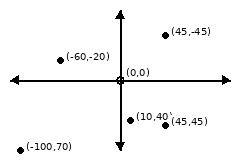
The Game Boy Advance sports a 240x160 pixel screen (240 pixels wide, 160 pixels tall). Butano has a bit of an idiosyncratic way of representing sprite positions on this screen.
Points are represented (x, y) where (0, 0) is the center of the screen. X increases to the right, just like in math class. But Y increases going DOWN, flipped from your traditional math diagrams! A few example points are marked on the diagram below:
Art time
Try making a second dot variable myCircle2 with new coordinates. Try making a 3rd and a 4th! Can you make a picture that looks something like this?

Or if that’s too cliché, make some other sort of picture with your dots! Once you’ve got some arrangement you’re happy with, add, commit, and push your art for the world to see.
Next
Making a bunch of separate dot sprite pointer variables manually is a bit of a pain. Let’s see how we can start introducing loops and data structures to do things nicer!